This document is aimed to help you prepare your dataset to conduct VPA in Buymanager Nego. Other documentation to use for Nego :
- Nego process : click here
- Nego settings : click here
- Download dataset example : Nego - Dataset example
- A Gantt planning with all the actions to engage to run Nego can be provided upon request.
The Supplyframe team remains available to help you through this process.
Table of contents :
2. Dataset format : specificities to follow
1.Before to create dataset : decisions to take
Before to start working on the dataset, some decisions must be taken by the buyers.
a.Which VPA strategy ?
The following decisions must be taken and will have an impact on the dataset :
- Which commodities will be negotiated ?
- Which lines will be negotiated (80-20 ? Per commodity or in global ? The new lines ?...) ?
-
How VPA will be organised on Buymanager (1 Nego per commodity ? 1 Nego per buyer ? …) ?
- There should be 1 dataset per Nego in Buymanager
b.Which data to upload ?
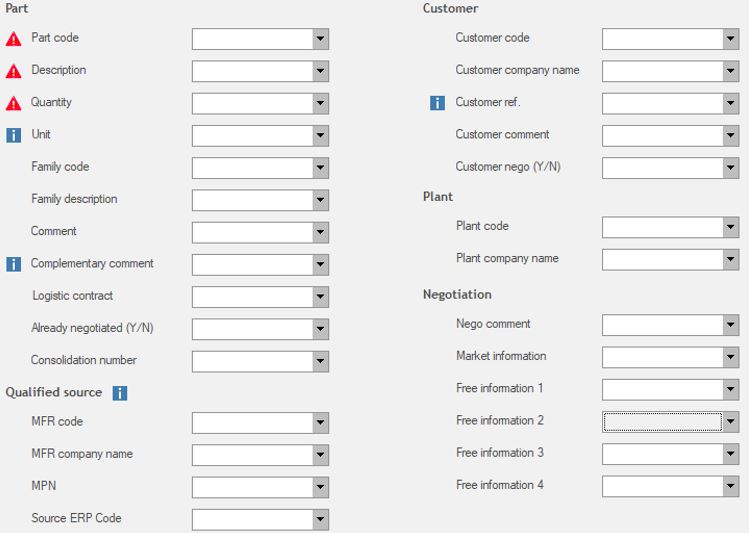
Following data can be uploaded in Buymanager to run Nego (see picture below) :
- Red warning : these fields are mandatory
- In addition to data below, you can also upload reference prices (with price info) and target prices (see point 1.c.)
- If you would like to upload data that are not in the list below, you can use the fields “free information” (up to 4). These 4 fields can’t be sent in RFQ, but can be exported in LOA and reports to plants.
 c.Which reference prices ? A reference price is a price used in Buymanager during the Nego as a comparison with the new supplier prices. There can be up to 3 reference prices in Buymanager.
- Ref price 1 : it’s the most important. It’s the main price used through the whole nego process to compare new supplier prices and define savings. It must be selected carefully.
- Ref price 2 & 3 : they are used for comparison and savings as well, but it can’t be done on all steps of Nego. Also, it requires manual action from the buyer to view savings for these 2 prices.
 Following data can be uploaded per reference price (see picture below), for each reference prices, only Unit price and Currency are mandatory.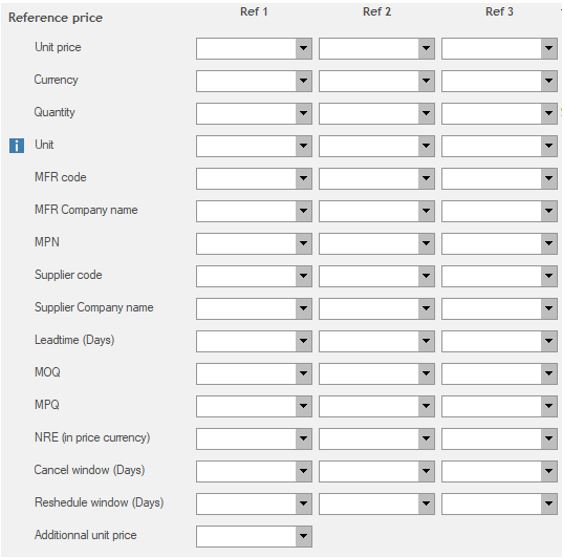
Buyers need to :
-
- Define the reference prices to use :
-
- Negotiated price for N-1 (from previous VPA) ?
- LPP ?
- WAP ?
- Other ?
-
- Define the order for these reference prices : which one is the ref 1 price ?
Reference prices are strongly recommended but optional. You can have only 1 or 2 reference prices.
d.Which target price ?
A target price is a price used in Buymanager during the Nego as a price to reach. It’s an additional comparison price compare to reference prices.
Following data can be uploaded for the target price :
-
- Unit price
- Currency
Buyers need to define the target price to use :
-
- Reference price 1 minus X% ?
- Minimum between reference prices 1 2 3 ? Minus X% ?
- Other ?
Target price can be sent to suppliers (usually on 2nd round). Buymanager can send :
-
- The real target price defined by buyers
- The target price minus X%
- The minimum price between Best Of and target price
Target price is optional.
e.Which parts to consolidate ?
Buymanager can consolidate parts based on a same source to negotiate on higher volumes.
The consolidation is :
-
-
Nego per Nego
- It’s not possible to consolidate only few parts for the same Nego
- Based on the same source : MPN + Manufacturer code
- Optional
-
Nego per Nego
Working and impacts :
-
-
Buymanager creates a fake part (CONSO0001 for example) which regroups the different parts that have the same source :
- Quantities (volumes) are consolidated
- Reference & target prices : the lowest price is used for each price type (ex : the lowest price between ref 1 prices is used as the ref 1 price of the consolidate part)
-
The fake part is used throughout the whole Nego :
-
Sent to RFQ to suppliers
-
It’s not possible to send to suppliers :
- The original part codes
- The part plants
- The part customers
- Any other data that were linked to the original parts and are not common between these parts.
- Used for Scenario
- Used for Negotiation F2F (but it’s possible to view in this interface the original parts that were consolidated)
-
It’s not possible to send to suppliers :
-
From the Assignment step, the consolidated part is split into the original parts :
- Assignment & award are done based on the original parts, but with using the consolidated parts data (price, supplier assigned, MOQ, MPQ…)
- Reports to plants & LOA are generated with the original parts
-
Impact :
- Only 1 price & 1 supplier can be selected for the consolidated parts. If there are protect designs, this option may be not relevant.
- Several data can’t be sent to RFQs, which may impact the prices received (customer, plant).
-
Sent to RFQ to suppliers
-
Buymanager creates a fake part (CONSO0001 for example) which regroups the different parts that have the same source :
Usually, the consolidation is used for passive parts and consumables.
Buyers need to define :
-
- If parts will be consolidated in Buymanager
- If yes, for which Nego(s) ?
For more information on consolidation, please review following documentation, step 1- point 3.
f.Other decisions to take but with no impact on dataset
These decisions will not impact the dataset, but should be taken before to start Negos in Buymanager.
Which savings threshold ?
The savings threshold enables to take in consideration the transfer cost from a supplier to another. It’s based on ref 1 supplier, which is considered as the current supplier for this part.
Therefore, if another supplier than the ref 1 supplier is cheapest than ref 1 supplier, but the savings that it represents are below the threshold, then the ref 1 supplier remains the supplier “best of”, because it will cost more to migrate from the ref 1 supplier to the other supplier than the savings received.
Define a savings threshold impacts Best Of calculation.
This setting is available Nego per Nego in Buymanager, or in global for all Negos.
Buyers need to define :
-
- Is there a savings threshold ?
- If yes, on all Negos or only on some ?
- What is the value ?
Savings threshold is optional.
Which currency rate ?
Prices in Buymanager Nego are managed in supplier currency (could be any currency) and converted in the Nego currency to enable comparison between all suppliers prices, reference prices, etc. Savings are calculated based on the converted price.
Currency rates can be managed Nego per Nego or in global for all Negos.
Buyers need to define :
-
- What is the default Nego currency (EUR for example) ?
- What are the currency rates values ?
- Will they be modified during Negos ? (because Negos could take several months) (in that case, it may have an impact on the savings and Best Of calculations)
- What is the strategy regarding currencies : choose in priority EUR prices, accept USD prices but define additional charges to cover the currency rate evolution risk, etc.
2.Dataset format : specificities to follow
Dataset structure :
In Excel, the dataset must be :
-
- On 1 Excel sheet only
- Only the first tab is uploaded
-
The dataset must have :
- Columns headers in line 1, start from column A
- Data start from cell A2
Data codes to review :
If following data is already existing in Buymanager, then the data in the dataset must be the same :
-
- Manufacturer code
- Supplier code
- Client code
- Commodity (family) code
- Plant code
- Currency code
Focus on manufacturer & supplier codes :
-
-
These ones are usually the most touchy, because if there are several ERPs in the company and data is coming from all of them, then manufacturer & supplier codes will be different and should be reviewed.
- It’s the same situation with commodities but it represents much less data.
-
These codes must also be the same than the ones used in linecards.
- Otherwise, linecards can’t be used in the Nego, because suppliers and manufacturers will not be recognised.
- Same situation with commodities : if suppliers are defined per commodity, then commodity codes should be the same than the dataset, otherwise they will not be recognised.
-
Manufacturer codes must be the same through the different sources.
-
If a MPN is the same between several parts, the manufacturer codes must be always the same (when it’s indeed the same source), otherwise Buymanager will consider that it’s different sources. Result :
- Data might be duplicated
- No consolidation possible
-
If a MPN is the same between several parts, the manufacturer codes must be always the same (when it’s indeed the same source), otherwise Buymanager will consider that it’s different sources. Result :
-
These ones are usually the most touchy, because if there are several ERPs in the company and data is coming from all of them, then manufacturer & supplier codes will be different and should be reviewed.
a.Multisources management
A part which has several qualified sources must have 1 line per source in the dataset. All data (part code, prices, quantity…) must be repeated for each source. So there will be 2 duplicated lines with almost all same information, except the source.
b.Duplicated lines
Some lines may be duplicated in the dataset.
- Duplicated lines are exactly the same
There is no action to engage. These lines will automatically be recognised by Buymanager and only one of them will be uploaded.
- Duplicated lines have at least 1 different data
Buymanager will consider that the 2 (or more) lines are different and will upload both of them. Therefore, data will be duplicated in Buymanager, with 2 (or more) quantities to quote, and all of them will be sent to RFQ.
If it’s a mistake, the duplicated lines must be deleted or updated in the dataset.
Examples of different data :
-
Plant : the part was transferred from a plant to another, but in the dataset, both plants are visible. Only the current plant should be kept.
- Action : delete the line with the previous plant
-
Source : the manufacturer is not the same for 2 different parts with same MPN, but should be. For example, STM01 – MPN1 and STMICRO – MPN1.
- Action : Define the same manufacturer code on both sources.
-
Source : sources are different for same part : it’s a multi sources part so the situation is normal.
- Action : no action to engage.
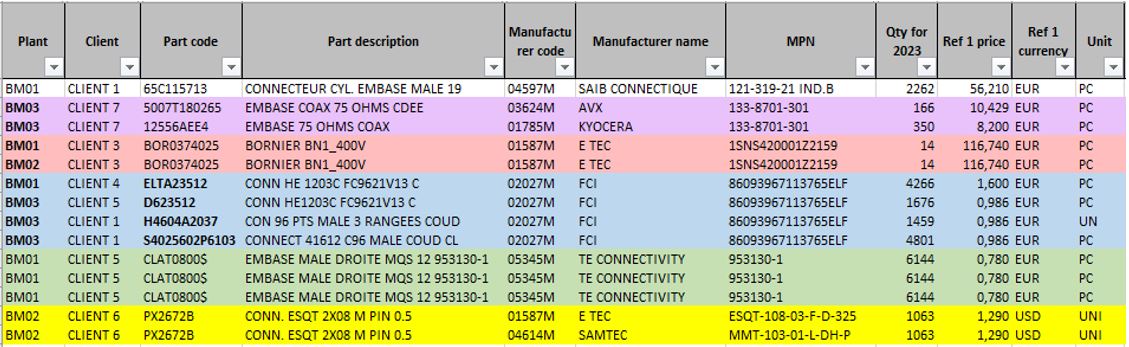
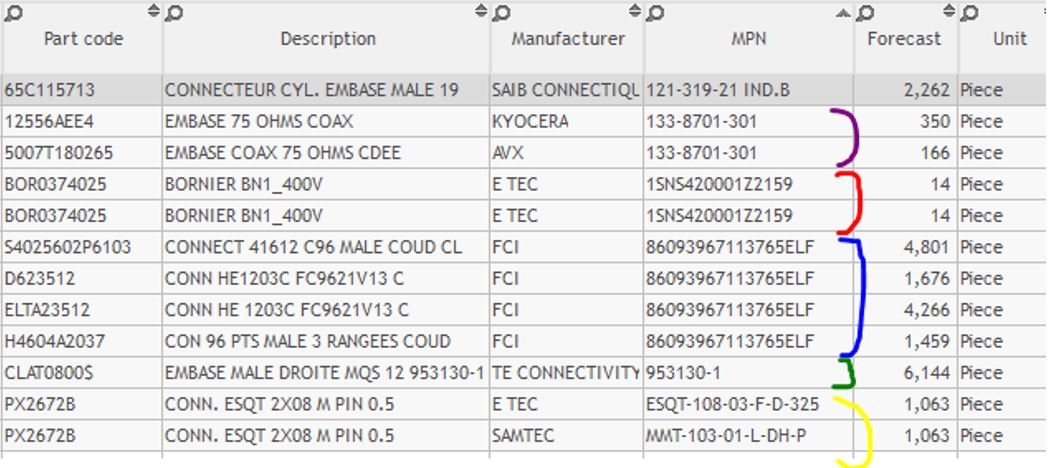
Examples : The following dataset is uploaded in Buymanager, with the following result :
-
Purple lines : 2 different parts with the same MPN but different manufacturer code (it’s the same company but with subsidiaries).
- Result : the 2 lines are uploaded in Buymanager, with 2 parts created and 2 lines to negotiate with suppliers. The consolidation is not proposed because the manufacturer is not the same.
-
Red lines : duplicated line with only the plant in difference.
- Result : the 2 lines are uploaded in Buymanager. There is only 1 part created, but 2 lines to negotiate with suppliers. It could be possible to consolidate these 2 lines, so the quantity would become 28 instead of 14 per line. In that case, Buymanager considers that the same part is used by different plants, so it’s normal to have a different plant name.
-
Blue lines : it’s different parts with different info, but the source is the same.
- Result : Buymanager proposes to consolidate (see point 1.e.). If consolidation is refused, all lines will be uploaded in Buymanager.
-
Green lines : duplicated lines with no difference.
- Result : only 1 line is kept in Buymanager.
-
Yellow lines : duplicated lines with a difference on the source. It’s normal, it’s a part multisources.
- Result : the 2 lines are uploaded in Buymanager. There is only 1 part created, but 2 lines to negotiate with suppliers. It’s normal.