This article offers an overview of building and modifying reports in Buymanager. For any questions or more complex report modifications, please don't hesitate to contact us for a quote.
Buymanager offers different types of reports to meet the varied needs of its users. Here's an overview of the available report types:
Available Report Types:
- Default Reports: These are predefined reports by the Buymanager team. The most commonly used include multi-quantity costing, consultation costing, and technical reservation. These reports are designed to include the most frequently requested information and do not require any modification from the user.
- Smart Report: This type of report offers limited customization. For example, you can add a summary tab to your report and select the desired columns for the second tab from a list of available (limited) columns in Buymanager. It is not possible to add advanced Excel calculations or formulas to a Smart Report.
- Custom Report: As its name suggests, this report allows for a more advanced level of customization, but it is also more complex to build. You can integrate information available in Buymanager as well as specific Excel calculations and formulas.
Modifying or Building a Report
Default Reports: We strongly advise against modifying default reports, as they are optimized to provide standardized information. If you need customization, opt for a Smart Report or a Custom Report instead.
Creating a New Report: To create or modify a report, access the Quote module in Buymanager. In the header, select the Database tab, then click on Reports. You can then choose an existing report or click Create to create a new one. When creating a report, you will need to enter a name (which can be modified later) and choose the report type (Smart or Custom). Note that the report type cannot be changed afterward.

The Smart Report
In the report building window, you will find 4 categories on the left panel:
- General Info: Here you will find the general information about your report. Specifically, you can change the name of your report, make your report the default template (the report that will appear by default when sending reports), choose the sorting order of items (by code or label), etc.
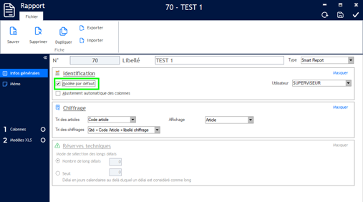
- Memo: If you wish to add a memo to your report.
- Columns and XLS Templates: To build your report. See below.
The XSL Template
The XSL template is the Excel basis of your report. In a Smart Report, it consists of two tabs:
- Tab 1: Summary - Allows you to create a personalized summary of your report, with your logo, colors, and the general costing information you wish to display (quantity per assumption, total revenue, lead times, etc.). To find the corresponding codes, see the paragraph on custom reports.
- Tab 2: Report - Used to define the formats and colors of columns and headers. This information will not be visible once the report is generated for a specific quote, but it allows you to structure your report with your style preferences. On this tab, the columns chosen in the following steps will also appear. Add the different formats (font, colors, etc.) in this tab. The order and the columns to which you apply these formats do not matter. You will also see hash symbols (###) in column A; these are used by the system for document reading and should not be deleted.
Once the template is created, import it using the Import unique template button or by language, if you have created different templates per language.
Choosing Columns
In the Columns tab of your Smart Report creation, you will find the Buymanager fields available for your report.
You can search for a particular field by right-clicking on the header of the "fields" panel. You can search by name (with the exact name) or search using the "contains" filter for a broader search on a word.
To add or remove columns, use the blue arrows between the two panels. The gray arrows on the right allow you to reorder the columns. The Label is the text that will appear in your report for each column, and you can modify it by clicking on the AtoZ symbol. The formats created in your XLS template will appear in the Style columns.
Custom Report
Building a Custom Report
This type of report allows you to add Excel calculations and formulas. The report is structured from the XSL template, and Buymanager information is inserted via specific codes.
The XSL Template
The XSL template of a custom report can have three tabs:
- Summary - An overview of the quote or report information.
- Report/BOM - Contains the necessary columns and information.
- Index - To add indexed information, useful for certain Excel formulas.
You can customize column names, colors, and fonts directly in this template.
Choosing Information
To integrate specific Buymanager information into your report, use the Column tab of the custom report building menu. A panel displays all available fields. As with the Smart Report, a right-click allows you to access the field search menu.
Once a field is selected, choose the action to perform:
- Check "Display information (details)": this will create a code for information corresponding per line (per item).
- or "Display information (global)", to get the code concerning general quote information.
- If the information sought should take into account a specific assumption, add the assumption number in the corresponding field.
Using Codes
Each selected information generates a specific code to be inserted into your Excel template.
For example, to display the item code in a column, select the Item: code field and choose Display information (details), leaving the costing (assumption) at 0, since the item codes will be the same for all assumptions (quantity). The code to integrate into the template will be something like #DETAILINFO=10.
For global information, such as displaying the quote label in the header, first check the "display information (global)" option to display the corresponding fields. Select the Quote: label field and insert the code #INFO=1039.
Once the XSL template is filled with the necessary codes, calculations, and formulas, import it into Buymanager via the XSL Templates tab of your report. As with the Smart Report, you can import a unique template or by language.
IMPORTANT NOTES: After adding or deleting columns in a report, it is imperative to recheck all your Excel formulas and calculations. Any modification to the report structure can lead to errors in the results or affect the proper functioning of existing formulas.
Ensure that cell references are correct and that calculations are still valid to guarantee the accuracy of your data.
Please note that for any report requiring advanced modification or creation*, we remain at your disposal. *Depending on the complexity of your project, a quote will be sent to you.