This post explain how to extract the Technical Reserve Report and How to setup it. Thanks to your comment, the report has been refreshed and it's available from Buymanager release V4.10 October 2022. The report's goal is to see in one clic all warning points of the costing. Now you can send to your customer the report without any update and add the costing report as well.
1) Technical Reserve report content.
Technical reserve Excel template is available here It's divided in two blocs :
- Headers : Content and format customable, please see below "How to set up the Technical Reserve report".
- Report content : Not customable, data comes from the costing.
The report displays only parts linked to one of the these 6 subjects:
- Customer supply
- Customer Price
- Not Quoted
- Technical Reserve
- Long Leadtime (setting below).
- Excess
Note : If any of the parts are linked to one subject, it won't be visible on the report.

2) How to extract Technical Reserve report The Technical reserve report can be extracted like the others from the final step of your costing, "7 - Final Costing".
- Tab "Home"
- Button "Send reports"
- Tick the report to send it.
From this window, you can see as well the report by clicking on the Excel icon.
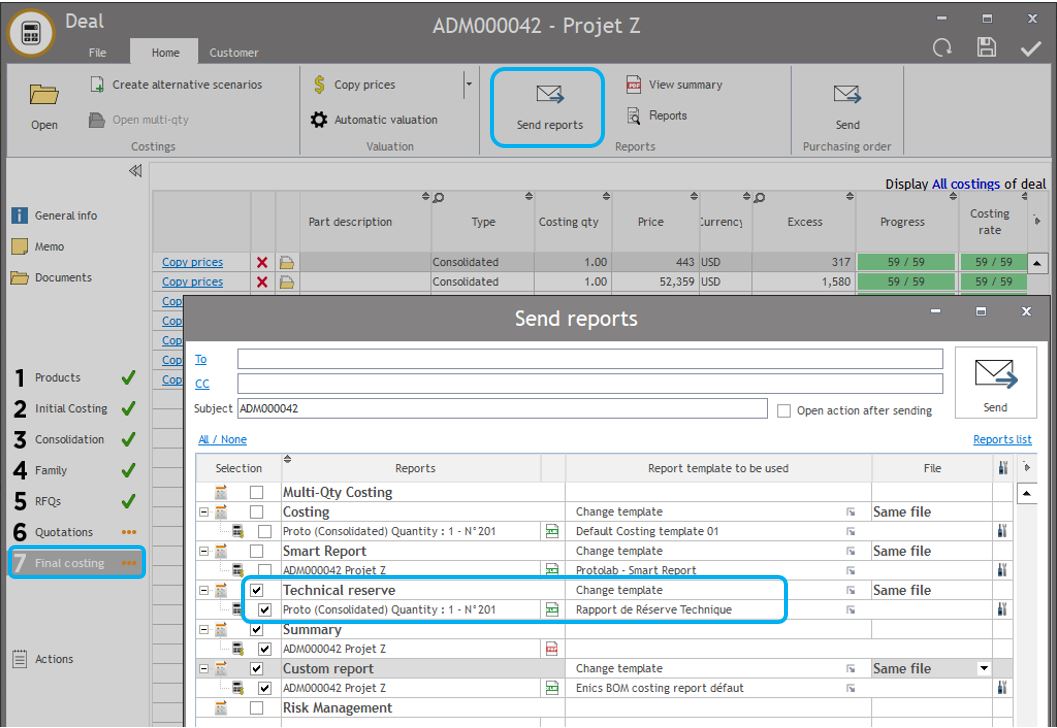
Note : For Multi-costings deal, you have to extract one report per costing. For a consolidated or aggregated costing, only one extraction is necessary.
3) How to set up the Technical Reserve report. The Technical Reserve report has a few customable option, however please note the are some key points to review by a key user or an administrator only. Where is the Technical Reserve report :
- Tab "Database"
- Button "Reports"
- Open the technical Reserve Report.
The excel model is available on step "2) XLS models", you can "modify report model" or "Upload report model".
On the XLS format is accepted for the report.

- Setting 1 : Long leadtime
-
- Define a "low limit" for long leadtime allows the report to know which article has a long leadtime. Long leadtime starts from this number.
Note : The low limit unit is "day", but if your costing is in week, the leadtime conversion day/week is done automatically.
-
- Define a "Longest Leadtime count" is the number of line maximum available on the report for this subject, we recommend to put "100" lines.
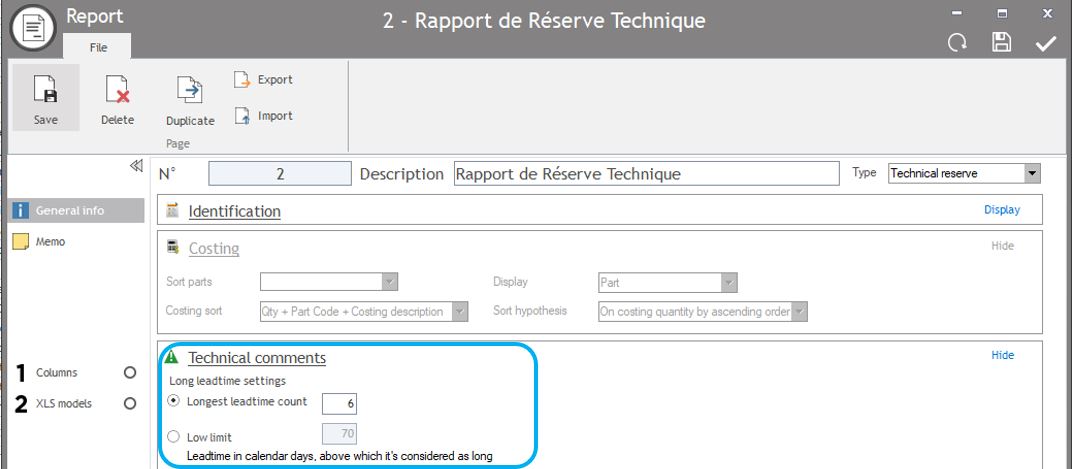
- Setting 2 : Header
-
- Tab 2) XLS model, the Excel file is customable only for the header as below :
-
-
-
- Enterprise Logo
- Header color
- Header typography
- Header & content background (for example in white)
- Automatic code from main costing data, please refer to the right box "Excel codes".
-
-
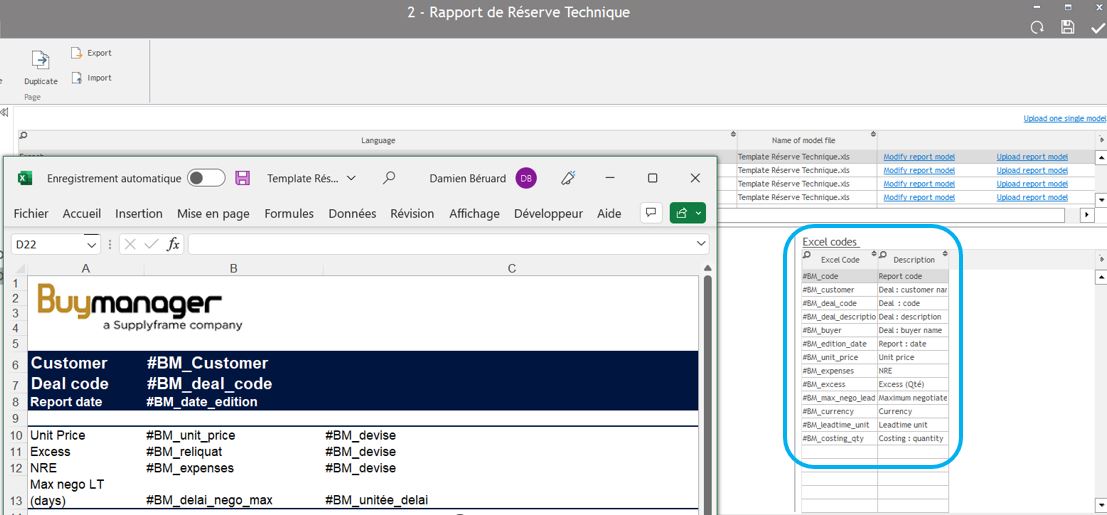
As a reminder, you can download our Excel template for the Technical Reserve Report here.