Buymanager gets a new customer management AML (client approval) Indeed, from importing new customer BOM, customer AML are perfectly identified in customer part or ERP part. Thus, it is possible to manage research of costing prices more finely using the concepts of customer AML, restricted or opened. Similarly, it is possible to present this information in the final costing report and whether a price assigned to a BOM line meets customer AML or not.
How to manage AML customers?
You get a new deal request to your customers. In the customer BOM, it offers a corresponding set of AML strictly or not he wants you to cost. Two scenarios are possible in Buymanager:
- The customer AML are restricted: Only these AML must be costed otherwise the customer will give its approval to authorize an AML that would not initially provide.
- The customer AML are open: It will be possible to make proposals to the customer by searching prices on other AML corresponding to the final need
Before describing how to handle customer AML, it is important to understand how Buymanager is able to cost a BOM.
- First scenario: affected part to a BOM line is the only reference to prices scope.
- Second case: affected part of a BOM line is a carrier containing AML. From these AML, you allow Buymanager research coherent prices from a panel of Part AML affected. In most cases, these parts are customers parts containing customer AML or ERP parts containing your production AML.
With the new management of customers AML, regardless of the assignment of the part to the BOM line, we memorize in the part the customer AML. 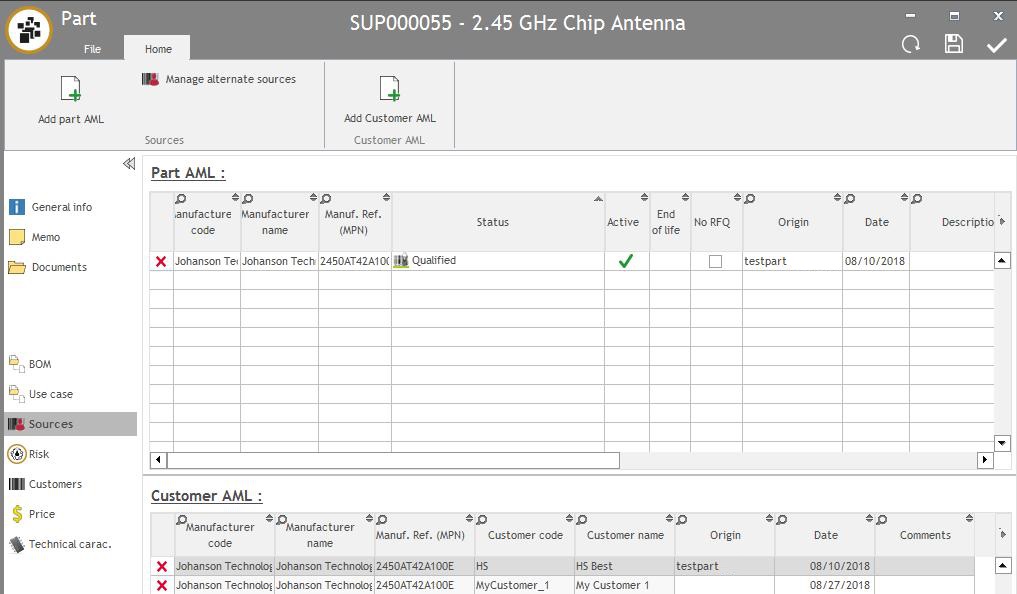 During the costing, it is possible to reduce the search price scope at customer AML and not the potentially AML of part affected.
What's the difference between Part AML and Customer AML?
-
Part AML: A source from the Supplier. One part can have multi-sources.
-
The user can define the status of the part:
- Information: Information for reference
- Rejected: User decides to reject the proposal from the supplier
- To be qualified: User waiting for the customer to confirm the source is qualified or not
- Qualified: Customer confirmed the source is qualified
- Uncomplete: Uncomplete sources
-
The user can define the status of the part:
- Customer AML: A source from the from Customer (When the source is from a user upload the B.O.M it's meaning the source is from the customer.)

How to add Part AML and Customer AML in the part?
To create Part AML:
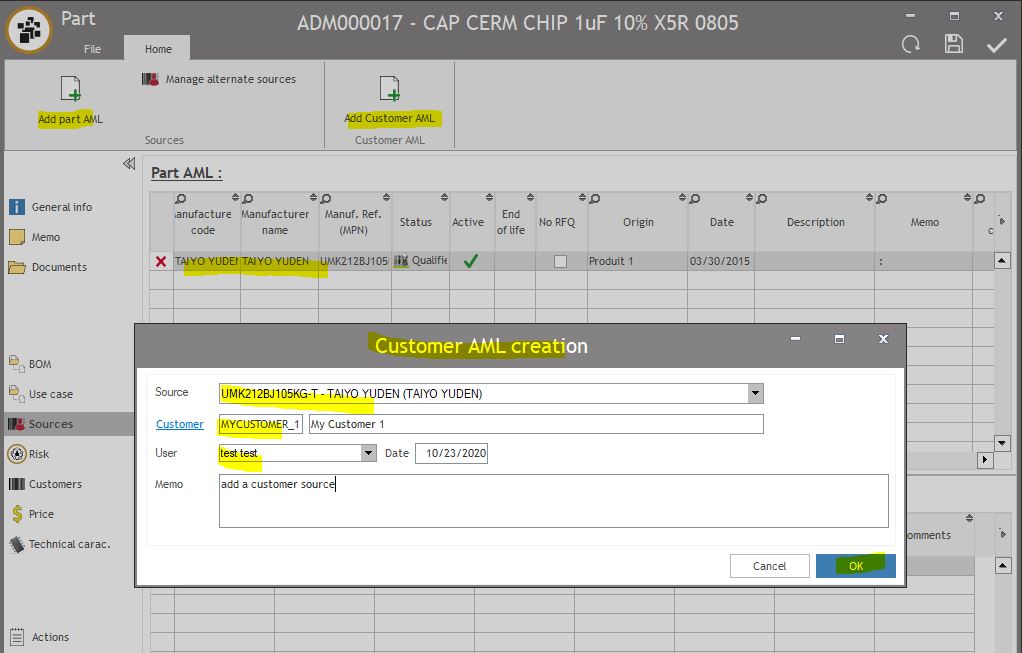
- Open the part >>Source >> "Add part AML"
-
Fill: Manufacture name, Manufacture reference (MPN) and set the
-
Source status:
- Information: Information for reference
- Rejected: User decides to reject the proposal from the supplier
- To be qualified: User waiting for the customer to confirm the source is qualified or not
- Qualified: Customer confirmed the source is qualified
- Uncomplete: Uncomplete sources
-
Source status:
- Press ok to save the Part AML
 To create Customer AML:
Note: Before you create customer AML you should have a Part AML source to add
-
Open the part >>Source >> "Add Customer AML"
- Source: Choose the Part AML source
- Customer: Fill the customer for the customer AML **Must fill
- User: The user creates the customer AML
- Press ok to save the Customer AML
How to manage customer AML during BOM import and part search?
When parts are automatically or manually found :
- First scenario: all customer AML exist in the affected part. These will be identified as customer AML and their status will remain unchanged.
- Second scenario: some customer AML does not exist in the affected part. By necessary, these will be created in the part as AML with status customer "Information". It is possible to change the status of AML and switch it to "Qualified" in the BOM preparation.
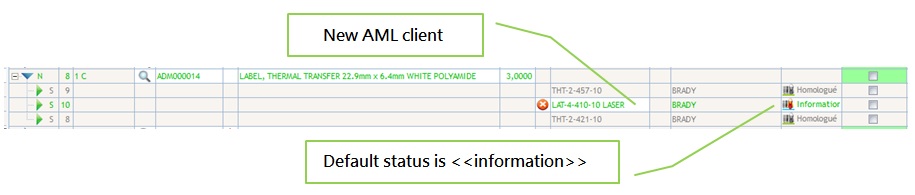
When no part is found automatically or manually:
- The new parts are created with the customer AML and "Qualified" status
How to manage customer AML during BOM costing?
The costing setting allows you to refine the prices extraction taking into account the customer AML or part AML but also the concept of restricted or opened AML. As a starter, you will define the input AML scope to use to search for prices

(Image : costing Settings - tab "AML Scope")
- Sources qualified: All "qualified" sources of the part AML of costed part
- Sources to be qualified: All "to be qualified" sources of the part AML of costed part
- Sources from customer: All "Qualified", "to be qualified" and "information" sources of the customer AML of the costing part
Example: according to the AML scope settings, here that will form the input AML panel.

On exit, you will specify the scope of price search

- Part restricted: Only prices contained in costing part
- Restricted AML: Only prices for the AML defined in the input AML panel
- Open AML: Prices contained in part with at least one of the input AML panel
Example in the step valuation of the costing :
Display sample: costing setting with Customer AML for input AML scope and open AML for the price scope

in this example :
The ADM000014 part has a price attached to the AML (THT-2-421-10). This AML is not a Customer AML but you selected "Open AML". So the price is available. You can see for this part an orange coloration because the selected price is not on a customer AML and you have the customer icon
The ADM000015 part has some quotation on the customer AML. So you can see for this part a green coloration because the selected price is on a customer AML and you have the customer icon
How to manage customer AML during report generation?
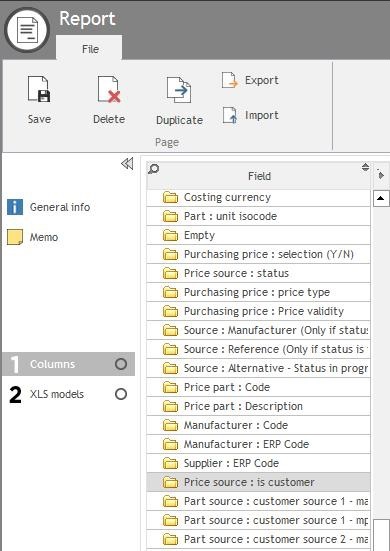
Customer AML being fully known, it can be added in costing reports a column to indicate whether the price selected for a BOM line from a customer AML or not.
- Open your report template
- Add "Price source: is customer" field in your report
- Save the change and use this template to generate the report
Buymanager modifie sa stratégie de gestion des AML clients afin de pouvoir à tout moment, dans le processus de chiffrage de nomenclatures client, restreindre ou étendre vos condition de chiffrage.