This document explains the implementation of PO (Purchasing Order).
PO process in Buymanager
Opening PO windows
The process to access the PO interface is the following:
- Create a deal
- Complete the deal (import BOM, cost the BOM)
- Once the costing is done
- Open final costing process
- Select One BOM Costing
- Click on Send (Group Purchasing order)
- Then the send PO windows will open

Limitations:
- The Send PO can only be open with one BOM costing
- The Send PO cannot be open on combine costing
Send the PO
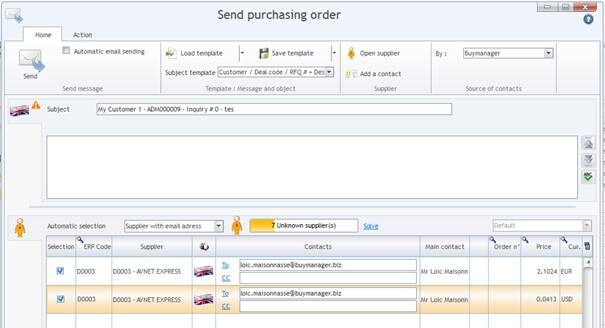 By default, the send PO window display the list of the solved supplier with a Buymanager code. The PO will display one line per couple (supplier / currency). For each supplier, we display:
- The ERP code of the supplier
- Some warnings (if price is higher than a limit, no ERP code for the supplier)
- The Order number if the PO have already been send
- The mail of the “PO” category main contact
- The total price of the PO
- The currency
The process to send the PO will be:
- Click on Solve the unknown suppliers
- If some suppliers are not solved (i.e. Buymanager have only a name), you must link them with a Buymanager supplier record.
- Select the suppliers to send
- Load a message for the suppliers
- The message is not memorized between two sends.
- Click on send the PO
- For each supplier:
- The PO pdf is generated
- The PO message is generated

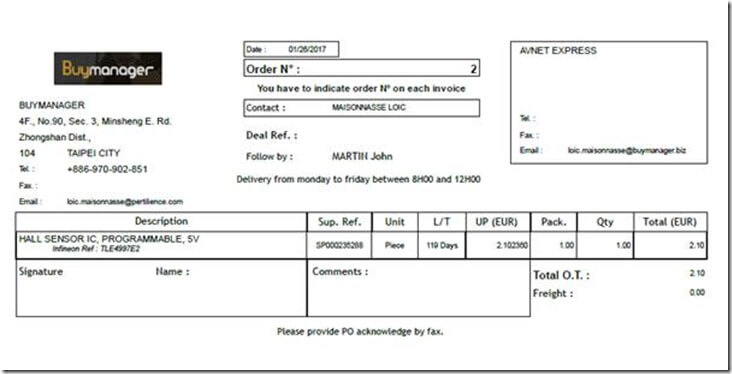
The pdf that will be send, will look like the following:
- The image, and the address define in the left of the PO are from the plant of the user
- The supplier information in the right of the PO are the information define in the supplier record of Buymanager.
- If payment terms can appear on the PO if define in the supplier record
- Deal Ref will be the deal code.
- The freight price comes also from the supplier record
- Line in the PO :
- One line per costing line where the supplier has been selected with the current currency
- Quota line from the costing are excluded
- For each lines:
- The description is the Buymanager description of the component.
- Sup. Ref. : is the reference for the supplier (SKU)
- Unit : is the part unit in Buymanager
- L/T : is the lead-time
- UP : is the unit price as define in the costing
- Pack. : is the SPQ
- Qty : I the quantity to order. This quantity is defined as the first SPQ multiple that is higher than the max between the (MOQ and the requested Qty with loss)
- N x SPQ > max(MOQ, requested Qty with loss)
- Total price: is the total order price for one component
Remarks
Complementary cost on a line
Some supplier can have “line cost” on the order, this kind of cost is not take in account in the PO.
SPQ on Webquote
Some Webquote services will provide SPQ equal to 1, for example mouser or Digi-key when they can propose repackaging solution (Digi-reel or mouser-reel). In Such a case: the buyer can buy the quantity he wants but the packaging can be split if the order is not a multiple of the reel. For example, if the reel size is 6000 piece, you can order 6500 to Digi-key, but you may receive one reel and one Digi-reel of 500 pieces. Moreover, the re-packaging may have a cost.
Multiple send and costing change
At this time, we do not forbid to send the PO more than one time. The PO number will remain with the same number (since the PO have been send one time). After sending a PO, if the user can change the costing. If the buyer decides to send again the PO, the PO number for the supplier will remain the same. If this new PO erase the previous one the Buyer must explain this information in the email.
Send history
At this time, we log information on PO send in a log table of the database, but we do not display theses information yet. To follow the PO the buyer must get the PO number (for example by sending to himself a copy of the mail) and copy it in an excel file. In a prototype context purchasing team doesn't want to lose time to launch purchasing order. Buymanager allow users to send purchasing order directly on Buymanager