This post explains the implementation of Loss Quantity.
Loss Quantity key-in and visualization
The loss quantity is available in the Part as follow: 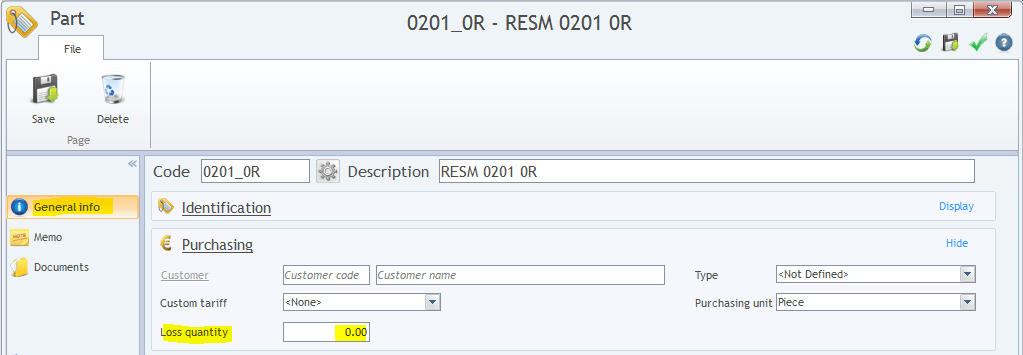
- User can Key in this information in the window
- Or users can update this information with Part upload during synchronization between ERP and Buymanager
The loss quantity can also be seen in the BOM visualization process: 
Loss Quantity for costing Creation
In Costing, the Loss Qty, will only be applied to costing quantity and not to overall Quantities
BOM Costing
When a “BOM costing” will be created from a BOM, the new requirement of a component will be compute as:
Requirement Qty = (Costing Qty x BOM Qty) + Loss Qty.
At this time: In a multilevel BOM, If one component appears in more than one level, we will add only one time the loss quantity for the multilevel BOM.
Consolidated combine
When a consolidated combine costing will be created from “BOM costing”, the Loss Qty quantity of one component that appear in the two costings will be added.
Consolidate Qty = Requirement Qty Costing 1 + Requirement Qty Costing 2
Aggregate combine
In an aggregate, the requirement quantity will remain the one of the source costing.
How activate the calculation of loss quantity
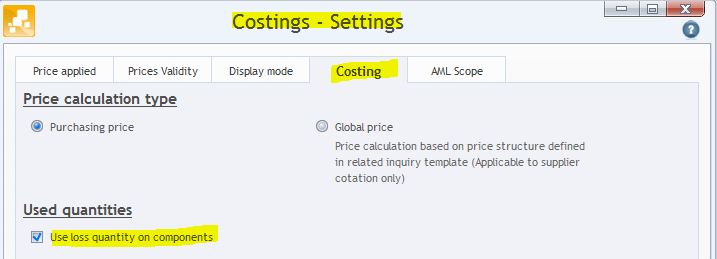
- In the costing >> open costing setting >> Tab “Costing”
- Up the check box “Use loss quantity on components”
Costing And Reports
In the costing the Loss quantity will be take in account in the Requirement quantity, consequently in the costing :
- The new Requirement qty will be display (with a color if loss qty) – a quantity decomposition will be available on the column hint bubble.
- The column UP Price, Qty And total Price, will not been impacted
- The column TurnOver and Excess, will take in account the Loss Qty
 Part SUP000042 as a requirement quantities of 4100= (4 * 1000) +100 His UP is 0.0036 USD for a BOM quantity of 4 the TOTAL BOM price is 0.0144 USD (calculate without loss quantity) His Turnover is 14.76 USD and the Excess of 3.24 USD (Calculate with the loss quantity) In report the current code Corresponding to Requirement quantity will export the value 4100 for the part SUP000042 We add 2 codes in reports:
- One to export the loss quantity corresponding to the costing (this may export the 100 for SUP000042)
- One to export the Requirement quantity without loss (this may export the 4000 for SUP000042)
Remarks Work Only for small Quantities
As done, Loss Quantity may work for small quantities (I.E. proto costing). But for big quantities the method I not good, if you need two reels of 6000 for one BOM, normally you may have loss quantities on each reel. Particular component needs certain number of loss component to charge the production machine. Buymanager improve the description of a part and add a loss quantity to take into account in the costing.